
Introduction to Peak
Welcome to your new best friend when it comes to inventory management! Peak is (in our opinion), by far the sharpest software on the market. In the following guides you will learn how to get the most out of Peak to optimize your business.
Peak runs day-to-day warehouse operations. Your overview of inventory, inbound, returns, forecast and campaigns is in Shipshark Portal.
Initially, you can contact us if you want someone from your team (e.g. customer service) to be invited to Peak.
To the left in Peak you will find your menu and its different items. Here is a review of them:
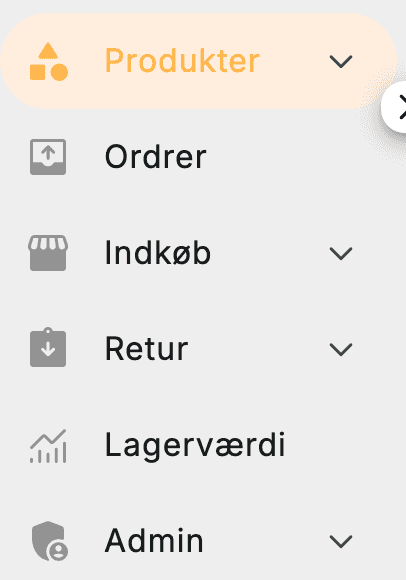
- Our products
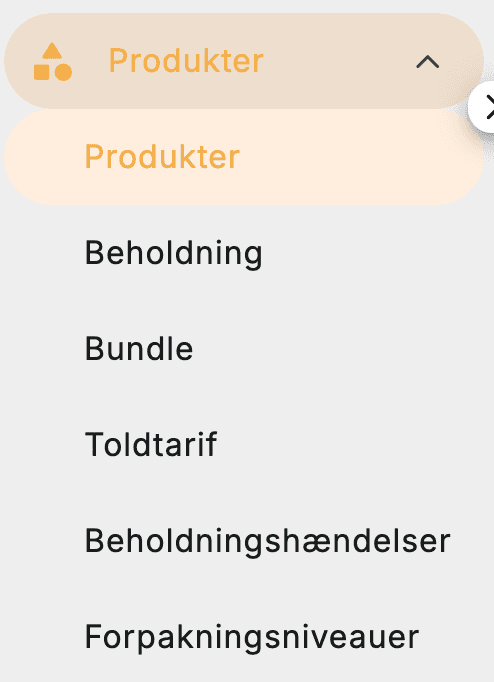
- Here you can see your products in peak, how much you have in stock, create bundles, set up customs (if you ship outside the EU) and much more. If you search our helpdesk, we have guides for most relevant sub-points
2. Orders
-
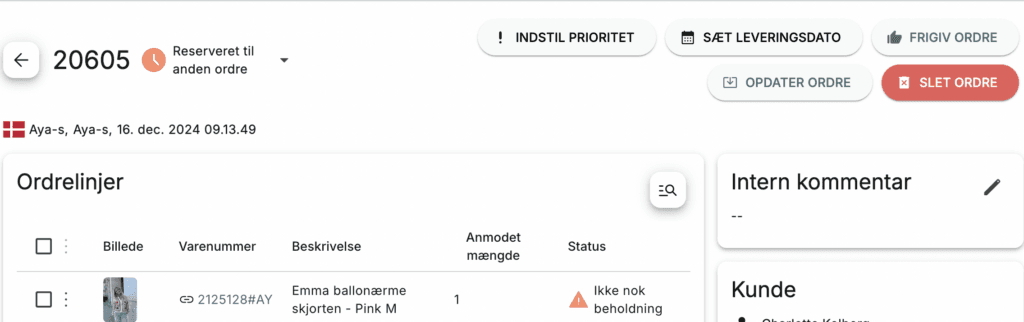
Here you can see the orders you have - and their status. Whether they have been sent or not, and if they have not been sent you can see why. One of the ones you'll often encounter is "Reserved for another order". If you then check the status under "Order lines", you can see a more detailed explanation of the reason and in this case see that there is "Not enough stock" (not enough in stock) for the item to be shipped.
-
Once an order is shipped, you can also track it in Peak or Shopify
-
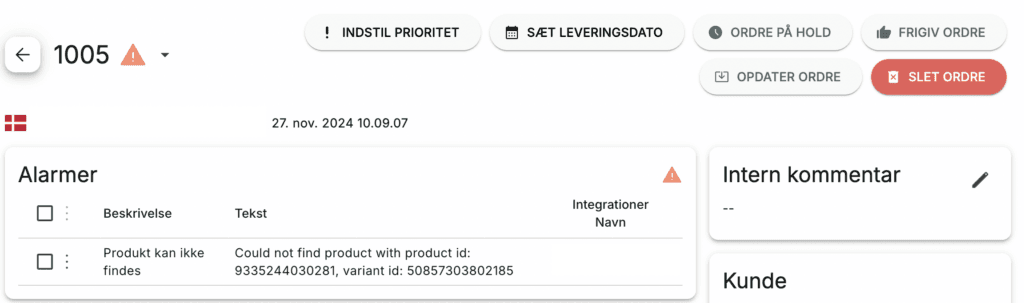
This is also where you can see if your orders have gone into "error", which means that you have done something in Shopify that prevents the order from shipping. We've made a guide here on how to handle your alarms
3. Purchasing
- This is where you create your purchase order. You can see how here
4. return
- Here you can use our returns portal to optimize your operations, finances and customer satisfaction. You can see a guide on it here
5. Storage value
- Here you can see the exact value you have in stock. Learn more here
6. Admin
- Here you can change your integration and much more. You won't use this one very often