Managing alarms
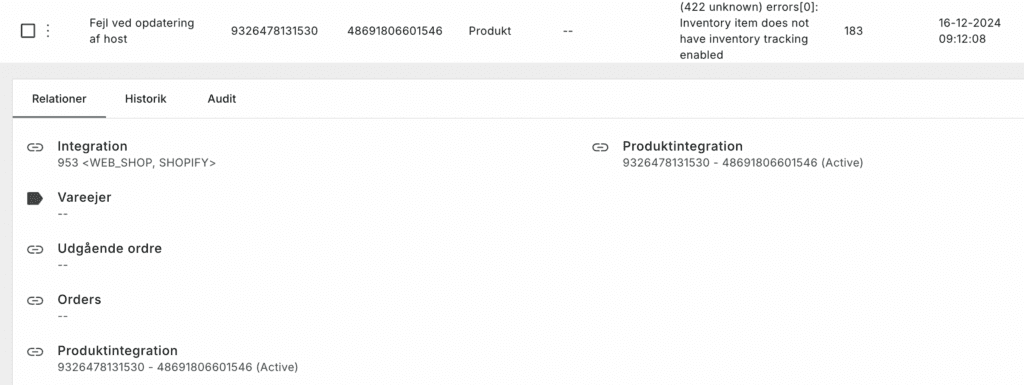
When you see an alert in the top right corner of your Peak overview, you know that an order has gone into "error", which means it can't be shipped until you resolve the error. Here's a guide on how you can easily manage your alarms.
- Identify which alarms you have
-
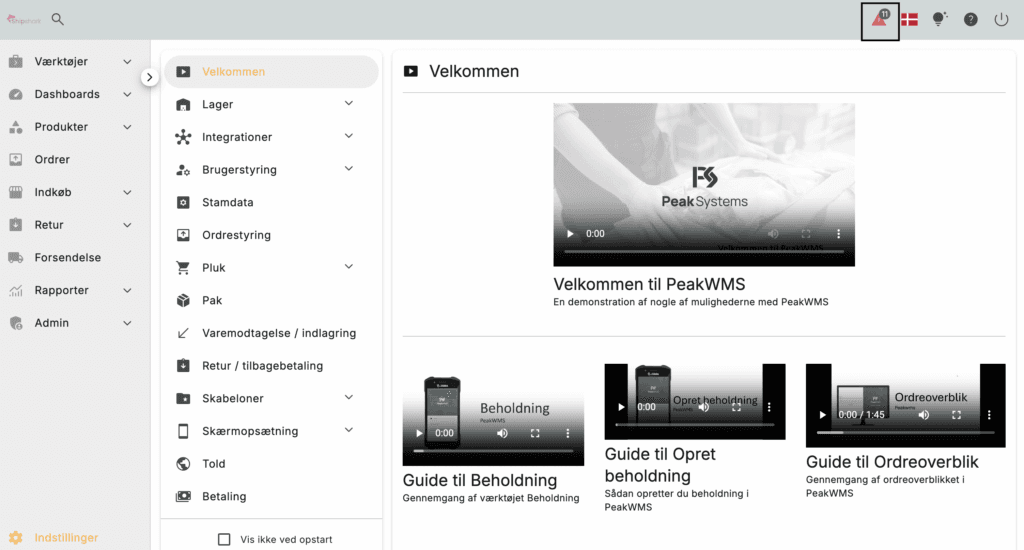
Tap your alarms in the top right corner
-
Identify the alarm you have and follow the instructions below
-
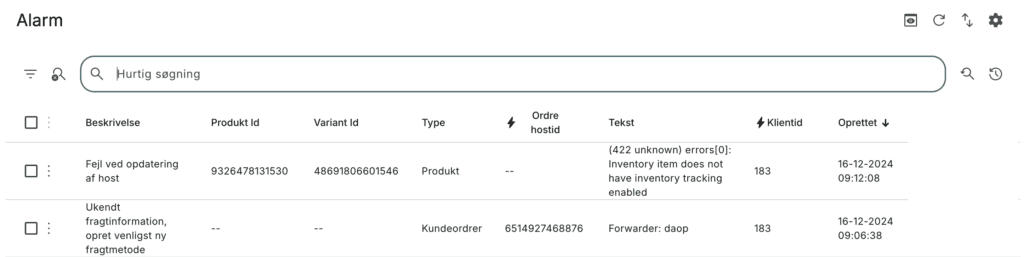
In the overview you can see which errors you have, get a description of them and even see which exact order it relates to
-
Here we simply clicked on an alert to expand it and see which order has failed. You can see below here that it concerns order 1038
-
Always check which orders are involved so you can learn how to make sure your orders do NOT go wrong again. If you make the same mistakes over and over again (e.g. never set shipping method on manual orders), they will always go into error

- Once you have resolved an error, go to the order and click "update order". If it now loads without an error, you have resolved the error and your order will be shipped as soon as possible
Overview of errors and their solutions
Error description: Unknown shipping information, please create new shipping method
Cause: You have received an order that does not have a shipping method. For example, it could be that you have created a manual order, or you have set up your shipping methods in Peak incorrectly
Solution:
-
If you have created a manual order that does not have a shipping method, you must remember to add the shipping name to the order (the same as in your checkout)
-
If you haven't created a manual order, you have set up your shipping methods incorrectly. Go through this guide here
- In the example above, you can see that under text it says "Forwarder: daop". This means that you received an order where the shipping method was called "daop", but you haven't connected it to a shipping method in Peak. All your orders sent to a DAO Parcelshop will be named "daop" (see the shipping methods guide above)
Error description: Product cannot be found
Cause: Your product does not have an SKU, a barcode, is not set as active or has been deleted from your shop
Solution: Find your product and add what's missing. Go through the product and check that the settings are as they should be
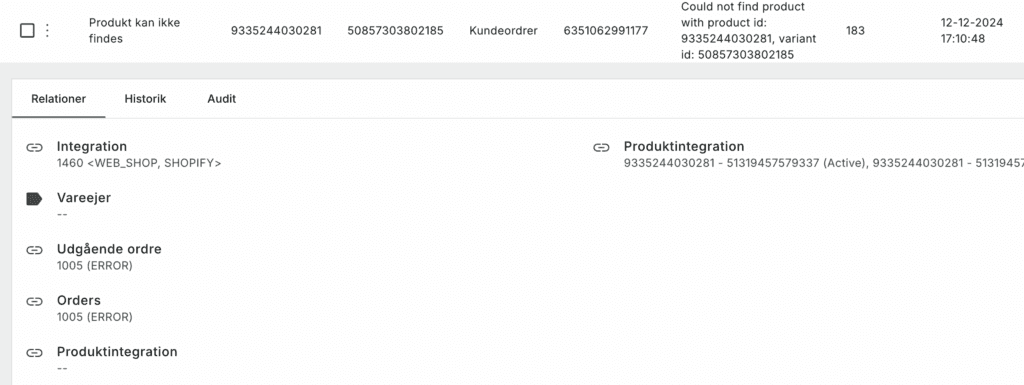
Error description: "Error updating host"
Cause: Depends on the error. Read more under "text"
- Here you can see an error "Inventory item does not have inventory tracking enabled"
Solution: Find your product and enable "Inventory tracking" under the variant. You can see which product this applies to.