
Enable Click & Collect
As a Shipshark customer, you can take advantage of click & collect. This works especially well for higher volume webshops for customers who need to get their order before a birthday or other special occasions like Christmas, which in itself will significantly increase your conversion rate. Here's how to set it up:
-
Aktiver Click & Collect i Shopify
-
Select "Settings", choose "Shipping and delivery", scroll down to where it says "Pickup in store", press "Set up"
-
Write the instructions that the customer needs to be informed about. We recommend: "Remember your order confirmation when you pick up your order." and select "expected pick-up date" - here you can select "4 hours".
-
2. Remember to name your inventory as follows in Shopify:
YOUR WEBSHOP Warehouse
Haraldsvej 66, Hall D, 8960 Randers SØ, Denmark
3. Enable pickup in Peak
Create the shipping method by setting it up under shipping integrations.
NOTE: Remember to set your webshop as the "item owner":

Your customer will automatically be notified by Peak when the order is ready for pickup and simply needs to provide their order number at pickup.
4. Set up your shop logo and name
PeakWMS will automatically send an email to your customers when a click & collect order is picked and ready for collection. In PeakWMS under "Settings" -> "Integrations" -> "Webshop", you can make sure that PeakWMS has your correct logo and webshop name.
Fill in "Logo" with an image link to your logo (png or jpg format)

And under "Sender address" fill in your webshop name.
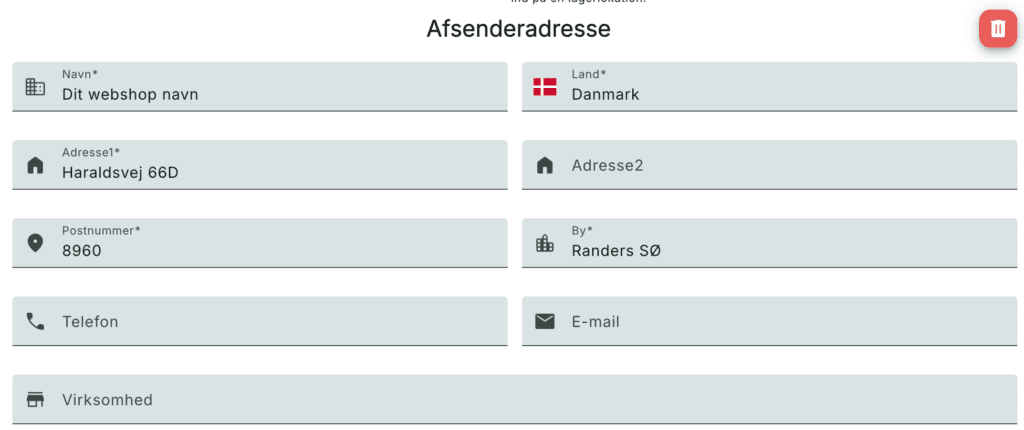
Leave all other fields as they are.
You do not need to change notifications in Shopify. Peak sends the email automatically when the order is ready for pickup. Once the steps above are done, you can place a test pickup order.